Set up Vacation Responder for out-of-office auto-replies
Whether you’re on vacation or simply unavailable, use the Vacation Responder to send an automatic reply to incoming email.
Select a tab based on whether you’re using webmail on desktop or the Titan app on mobile.
- 웹 메일 웹 에 로그인합니다. Professional Email powered by Titan 주소와 암호를 사용합니다 (GoDaddy 사용자 이름과 암호는 여기에서 사용할 수 없음).
- In the upper-right corner, select
 Settings, and then Preferences.
 - On the leftmost side, under SEND & REPLY, select Vacation Responder.
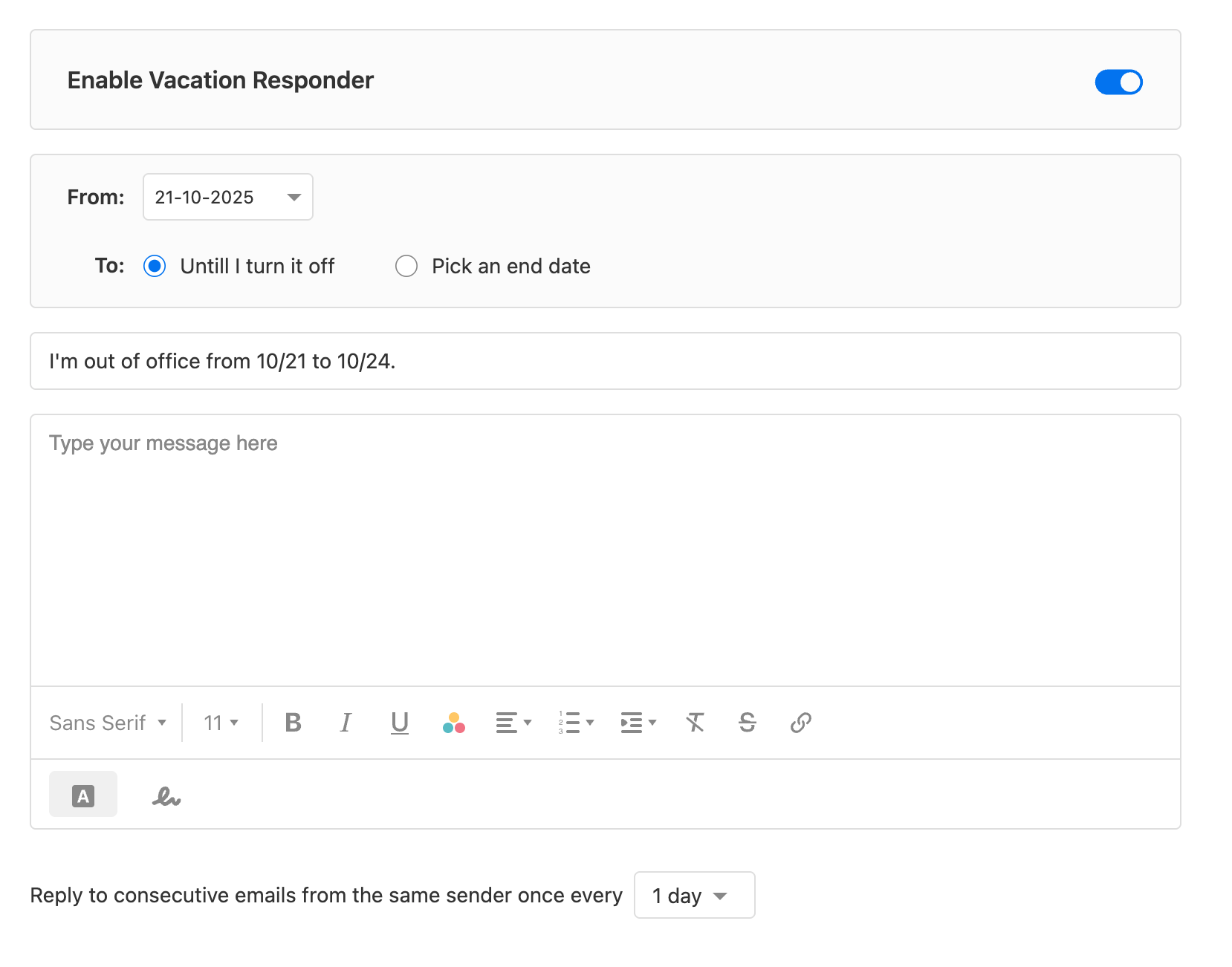
- Turn on the Enable Vacation Responder toggle.
- Select the date that you want the Vacation Responder to start, and then whether you want to leave it on indefinitely or select an end date.
- Enter a subject and message.
- Select how often you want to reply to consecutive email from the same sender (from 1 to 7 days).
- Save(저장)를 선택합니다.
- Open the Titan app.
- In the upper-right corner, tap the
 menu or swipe left.
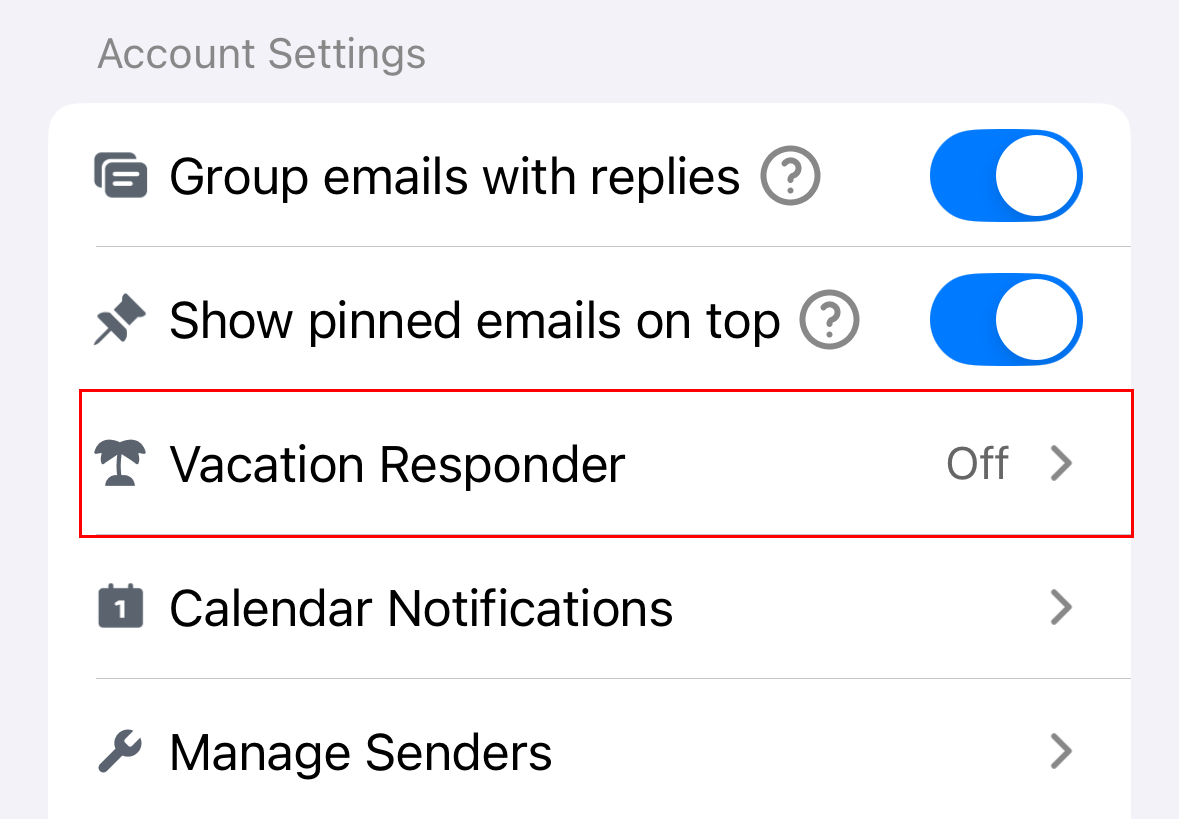
 - Scroll down, and then tap Settings.
- Under Account Settings, tap Vacation Responder.
- Turn on the Enable Vacation Responder toggle.
- Tap the date that you want the Vacation Responder to start, and then whether you want to leave it on indefinitely or select an end date.
- Enter a subject and message.
- Choose how often you want to reply to consecutive email from the same sender (from 1 to 7 days).
- Choose whether you want to see a reminder in your inbox when the Vacation Responder is on.
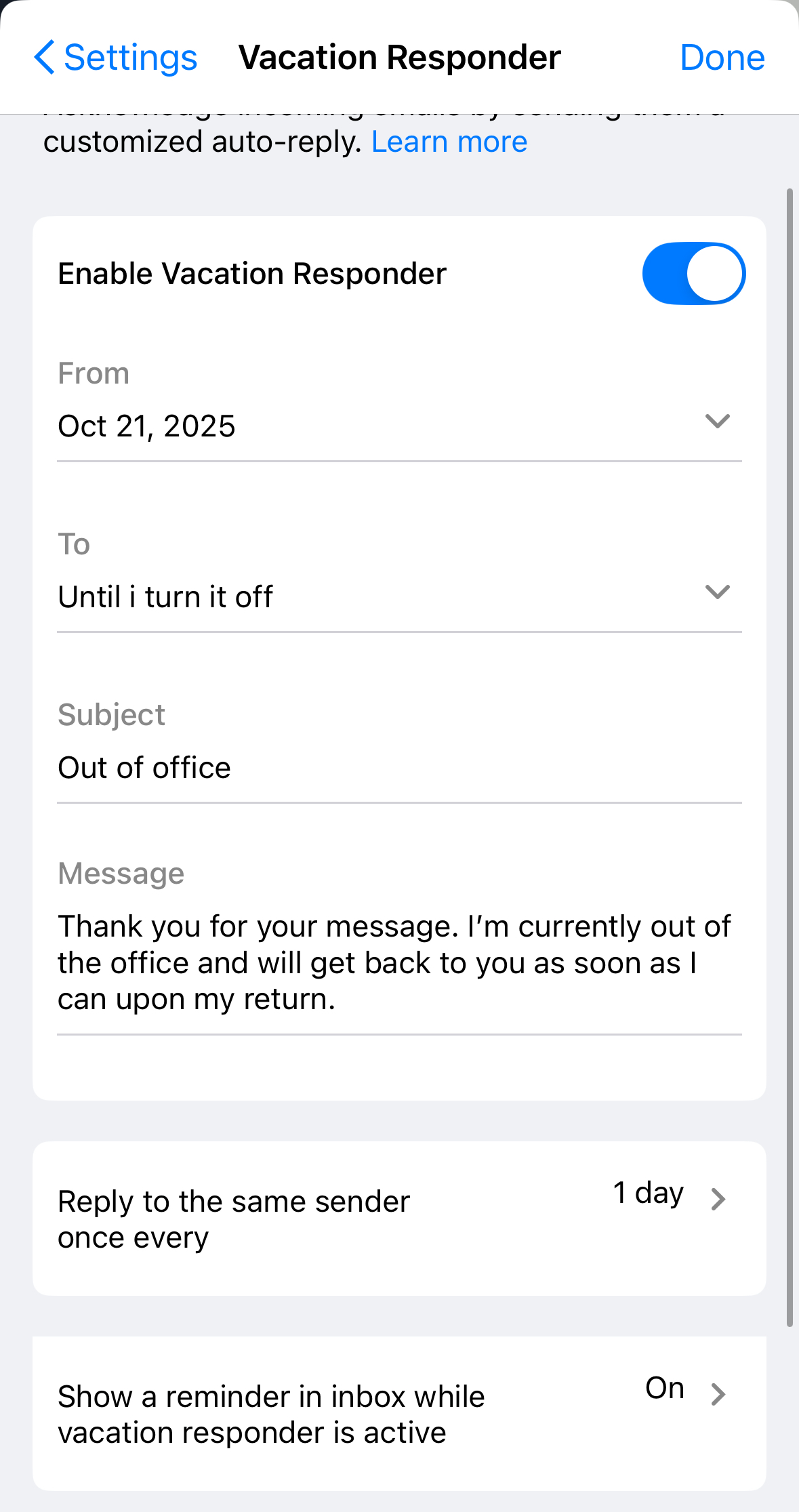
- In the upper-right corner, tap Done.