Conversations를 GoDaddy 이메일 주소에서 내 Microsoft 365에 연결
Link your Microsoft 365 email address to Conversations to get your emails directly in your Conversations unified inbox. If you’re a Websites + Marketing subscriber and you’re using a chat widget or web forms on your website, messages from those sources will also show in your Conversations box, through this email address.
Note: The GoDaddy mobile app is not available with free Conversations plans.
- GoDaddy 모바일 앱에 로그인합니다.
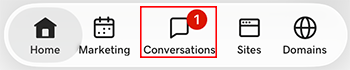
- At the bottom of the screen, tap Conversations to see a list of all your unarchived conversations.
- In the top-right corner, tap
 more, and then tap Settings.
- Tap Email. You may be asked to sign in to your GoDaddy account.
- Expand Email, and then tap Connect.
- Tap Microsoft 365, and then tap Next.
- 이미 Microsoft 365 이메일 주소가있는 경우 화면에 표시됩니다. 그렇지 않은 경우이 단계를 계속 진행하기 전에 계정을 받으라는 메시지가 표시됩니다.
Conversations에 연결하려는 이메일 주소를 선택한 다음 계속을 탭합니다.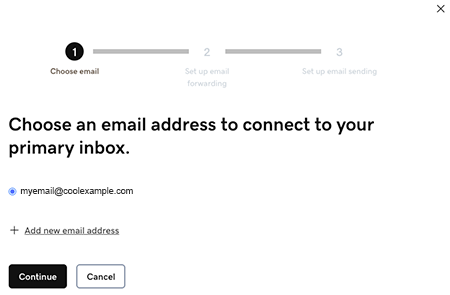
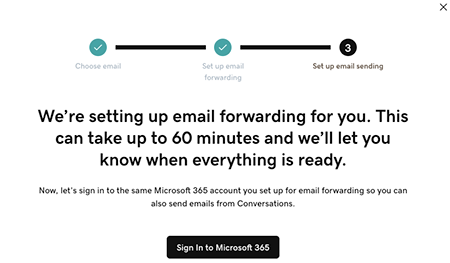
- Email forwarding will be set up for you. This could take up to 60 minutes, but you can continue setting up your email and we’ll let you know when forwarding is ready.
Sign in to the Microsoft 365 account you’re linking to Conversations. This must be the same account you used in Step 7.
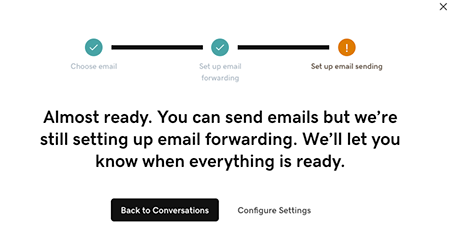
- 이메일이 아직 설정 중임을 설명하는 화면이 표시됩니다.
- GoDaddy 모바일 앱에 로그인합니다.
- At the bottom of the screen, tap Conversations to see a list of all your unarchived conversations.
- In the top-right corner, tap
 settings.
- Tap Email. You may be asked to sign in to your GoDaddy account.
- Expand Email, and then tap Connect.
- Tap Microsoft 365, and then tap Next.
- 이미 Microsoft 365 이메일 주소가있는 경우 화면에 표시됩니다. 그렇지 않은 경우이 단계를 계속 진행하기 전에 계정을 받으라는 메시지가 표시됩니다.
Conversations에 연결하려는 이메일 주소를 선택한 다음 계속을 탭합니다. - Email forwarding will be set up for you. This could take up to 60 minutes, but you can continue setting up your email and we’ll let you know when forwarding is ready.
Sign in to the Microsoft 365 account you’re linking to Conversations. This must be the same account you used in Step 7.
- 이메일이 아직 설정 중임을 설명하는 화면이 표시됩니다.
- 웹 브라우저에서 GoDaddy 제품 페이지 로 이동합니다.
독립형 버전의 Conversations를 사용하는 경우 Conversations 통합받은 편지함을 확장합니다. Conversations 플랜 오른쪽에서 웹받은 편지함을 선택합니다.
또는
Websites + Marketing 플랜이있는 경우 Websites + Marketing 로 스크롤하여 사이트 옆에있는 관리를 선택합니다. 왼쪽 메뉴에서 Conversations를 확장합니다.
- Settings(설정)를 선택합니다.
- Select Channels.
- Expand Email, and then tap Connect.
- Select Microsoft 365, and then tap Next.
- 이미 Microsoft 365 이메일 주소가있는 경우 화면에 표시됩니다. 그렇지 않은 경우이 단계를 계속 진행하기 전에 계정을 받으라는 메시지가 표시됩니다.
Conversations에 연결하려는 이메일 주소를 선택한 다음 계속을 탭합니다. - Email forwarding will be set up for you. This could take up to 60 minutes, but you can continue setting up your email and we’ll let you know when forwarding is ready.
Sign in to the Microsoft 365 account you’re linking to Conversations. This must be the same account you used in Step 7.
- 이메일이 아직 설정 중임을 설명하는 화면이 표시됩니다.
축하합니다! 귀하의 이메일 주소가 GoDaddy Conversations에 성공적으로 연결되었습니다. 전달이 완료되면 Conversations받은 편지함에서 직접 이메일 메시지를 받기 시작합니다.