채팅 + Conversations에 대한 알림 관리
When customers send a message through your Websites + Marketing site's chat widget, you'll also get an email notification. You can turn these notifications off or change the email address they're sent to.
Note: The GoDaddy mobile app is not available with free Conversations plans.
Required: You need a Websites + Marketing plan to use Chat + Conversations. If you're subscribed to Conversations standalone you won't have this feature.
- GoDaddy 모바일 앱에 로그인합니다.
- At the bottom of the screen, tap Conversations to see a list of all your unarchived conversations.

- In the top-right corner, tap
 more, and then tap Settings.
 - Next to Email Notifications, to receive chat messages through email, turn the toggle on (shows green). To stop receiving chat messages through email, turn the toggle off (shows white).
- GoDaddy 계정과 연결된 기본 이메일 주소로 이메일 알림을 받게됩니다. 이를 변경하려면이 문서의 웹 탭에 나와있는 단계를 수행하십시오.
- To receive notifications in the GoDaddy mobile app whenever you get new messages, select Manage in Device Settings.
- GoDaddy Conversations에 대한 인앱 알림을 허용합니다.
- GoDaddy 모바일 앱에 로그인합니다.
- At the bottom of the screen, tap Conversations to see a list of all your unarchived conversations.
- In the top-right corner, tap
 settings.
 - Next to Email Notifications, to receive chat messages through email, turn the toggle on (shows green). To stop receiving chat messages through email, turn the toggle off (shows white).
- GoDaddy 계정과 연결된 기본 이메일 주소로 이메일 알림을 받게됩니다. 이를 변경하려면이 문서의 웹 탭에 나와있는 단계를 수행하십시오.
- To receive notifications in the GoDaddy mobile app whenever you get new messages, select Manage in Device Settings.
- GoDaddy Conversations에 대한 인앱 알림을 허용합니다.
- GoDaddy 제품 페이지 로 이동합니다.
- 아래로 스크롤하여 Websites + Marketing을 확장하고 사이트 옆에있는 관리를 선택합니다.
- 왼쪽 메뉴에서 Conversations를 확장 한 다음 설정을 선택합니다.
- 알림 을 선택합니다.
- 이메일을 통해 채팅 메시지를 받으려면
 켭 니다 (녹색으로 표시됨). 이메일을 통한 채팅 메시지 수신을 중지하려면 토글을 끕니다 (흰색으로 표시됨).
 - GoDaddy 계정과 연결된 기본 이메일 주소로 이메일 알림을 받게됩니다. 변경하려면 상자에 새 이메일 주소를 입력합니다.
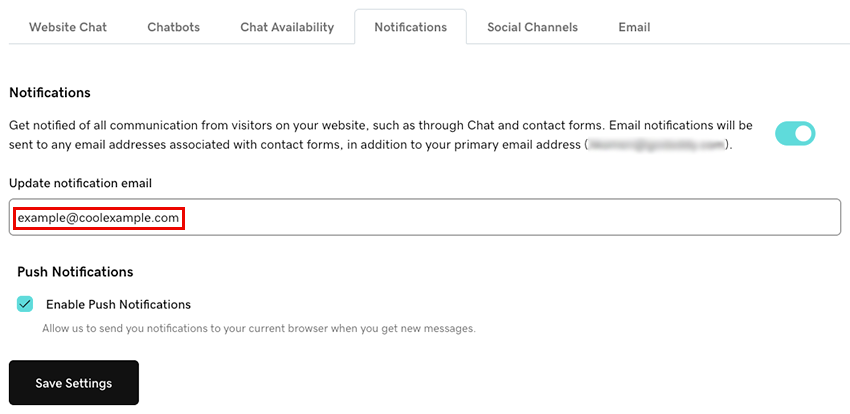
- Conversations를 통해 새 메시지를받을 때마다 브라우저에서 알림을 받으려면 Enable Push Notifications (푸시 알림 활성화) 확인란을 선택합니다. 현재 브라우저에 알림이 전송됩니다.
- 설정 저장 을 선택하여 변경 내용을 저장합니다.
알림을 설정하는 데 문제가있는 경우 Chat + Conversations에 대한 알림 문제 해결에 대한 도움말의 단계를 시도해보세요.